ArcheoEntry enables all data collected during an intervention to be recorded comprehensively in a centralized database. This approach takes into account the various interconnected aspects of archaeology. ArcheoBase's web interface allows access to the program from any device with an internet connection, thereby providing a centralized database and solving synchronization issues.
The Six Intervention Entities
The six entities in the ArcheoEntry - Intervention interface are the Map, Forms, Photos, Drawings, Documents and Harris Matrix.

Data from each entity can be linked together. For example, any form (stratigraphic unit, structure, etc.) can be linked to a photo, to a spatial representation and have its relating stratigraphic information inserted within a Harris matrix.
Therefore, the Six Intervention Entities should not be considered as single units, but as interconnected and user-defined components.
1. Map
The Map is a digital site plan that gives you an overview of all georeferenced data. Geometries can be imported from a theodolite file or created directly from the map; each geometric shape can be linked to an existing form. The map backgrounds can be switched and Orthophotos can be added to the site plan with ease. A GeoServer makes it simple to export data to third-party programs such as QGIS.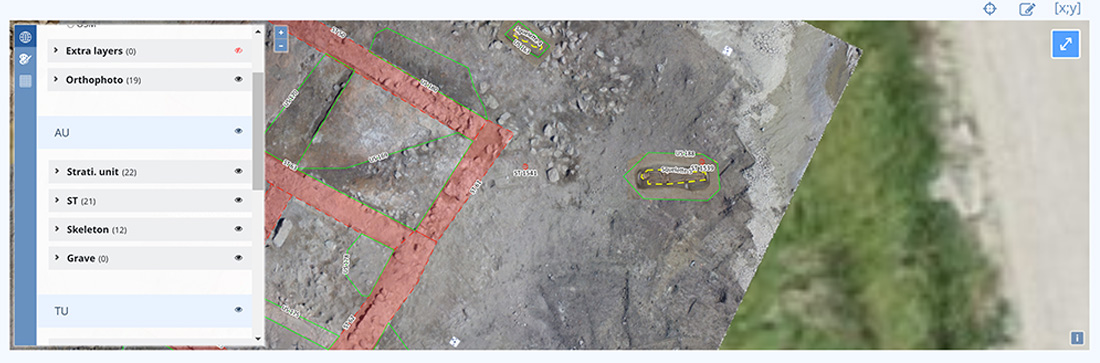
2. Forms
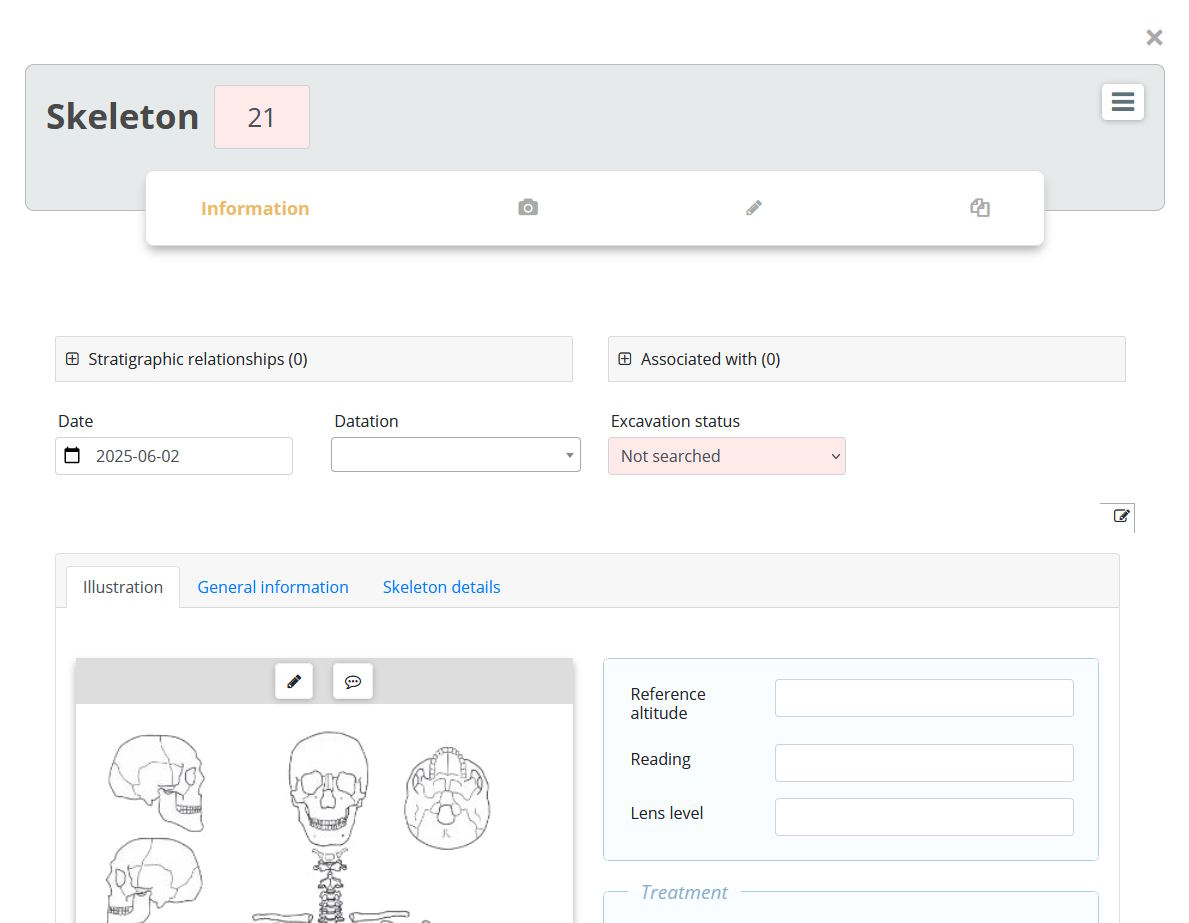
Forms are used to enter archaeological information. They include fields specific to their type, for example, Stratigraphic Unit, Structure, Skeleton, and so on. These forms are fully configurable and offer many efficiency benefits for processing information.
3. Photos
The Photos entity stores and displays photos taken on site. The photo gallery can be viewed in table or thumbnail mode. Each photo has a dynamic form that allows relevant data to be associated with it. For example, you can link photos to any form or document contained in another entity. Automatic linking can also be done by an artificial intelligence module that reads label plates, if present in a photo, in order to link them to their respective forms.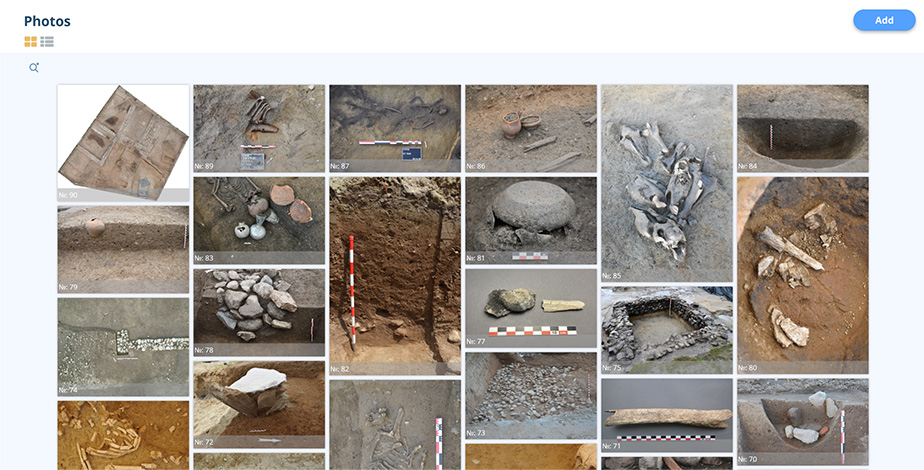
4. Drawings
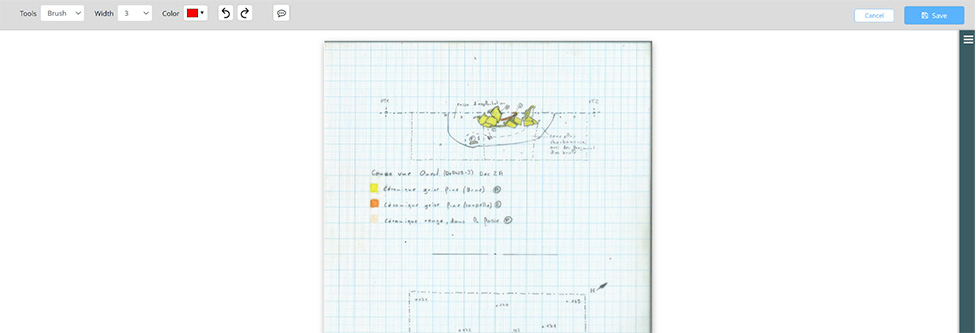
The Drawings entity stores and displays drawings made on site. Each drawing has a dynamic form that lets you link all relevant, associated data (such as a form or document) to the drawing. Drawing forms allow you to create drawings with a background image. They also offer the possibility to attach scanned versions of more detailed drawings that were made by hand on graph paper.
5. Documents
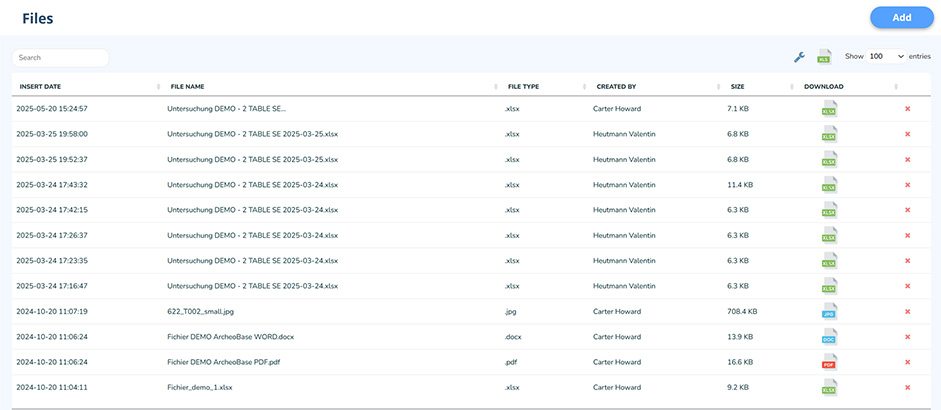
The Documents entity stores all documents relating to the current intervention. These may include reports, as well as various reference documents used during the intervention. The advantage of uploading all documents to ArcheoEntry is that it centralizes all information related to an intervention. This simplifies later consultation by a third party. Later, at the end of an excavation, the data can also be saved and exported as a backup for the post-excavation phase.
6. Harris Matrix
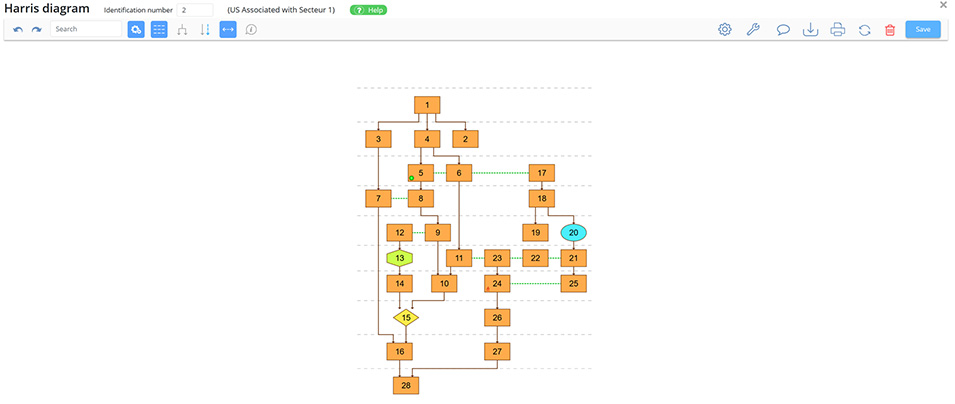
The Harris entity can generate and store Harris diagrams for an intervention. These diagrams are generated based on the stratigraphic information and related data contained within various other forms stored in ArcheoEntry. They are automatically created upon user request and are fully editable. They can also be printed or exported in vector format. As the following graph shows, implausible links are immediately detected to help the user spot errors, or to identify elements requiring special attention.
Utility buttons

The Utility buttons are displayed in the top right-hand bar. These include the General Information, Settings, Change User and Lock session buttons.
 |
The General Information button shows the basic data that was entered at the creation of an intervention. Some of these fields are dynamic and can be added or changed later. |
 |
The Settings button opens the intervention configuration panel. It lets the user define things such as: the coordinate system used during the intervention, the export of all data for backup purposes, the form settings, etc. |
 |
The Change User button lets you easily switch user accounts when sharing the same tablet with colleagues. Changing users is necessary because all data is stored individually to an ArcheoBase account. |
 |
The Lock Session button lets you lock the application without having to lock the tablet itself. This feature is useful when out in the field, to avoid potential editing errors when the screen is accidentally touched. |