I: Show vs Hide Redundant Stratigraphic Relations
J: Show vs Hide "Contemporary with" Relations
Once a Harris matrix has been generated, the toolbar provides a series of features allowing the user to modify the matrix as needed.
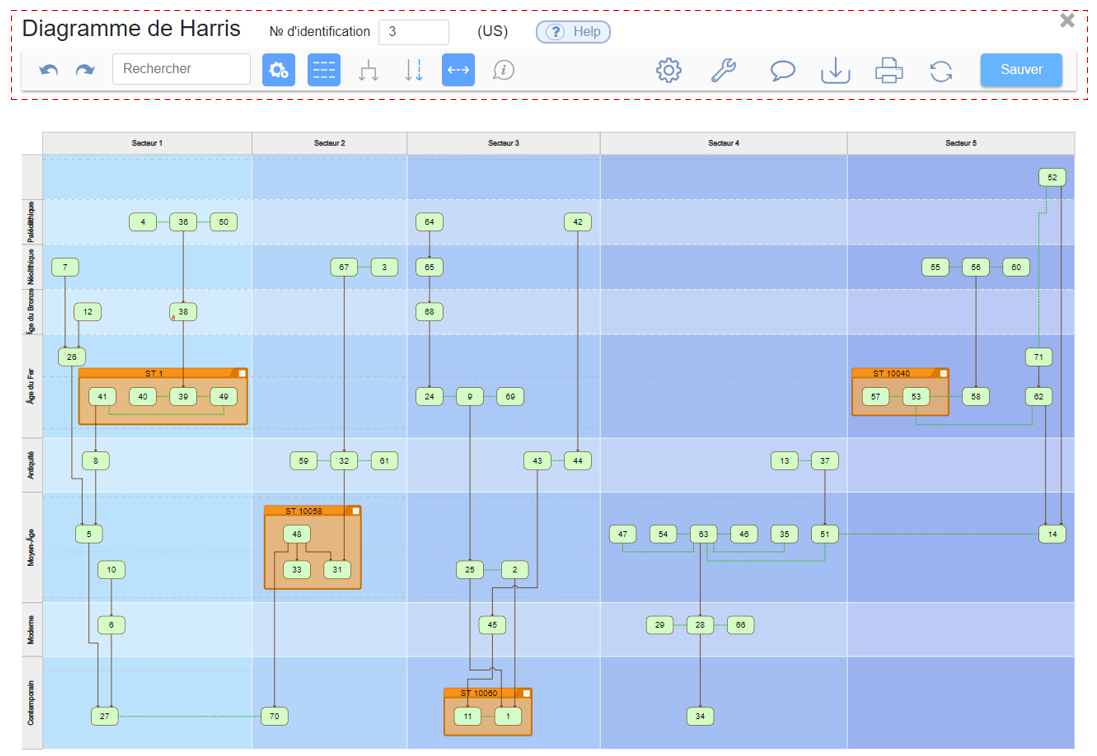

A: Identification Number
The identification number of the Harris matrix is generated automatically. The user can change the number if needed. Automatic numbering will resume from this base and increment by +1 for the next matrix.
B: Matrix Elements
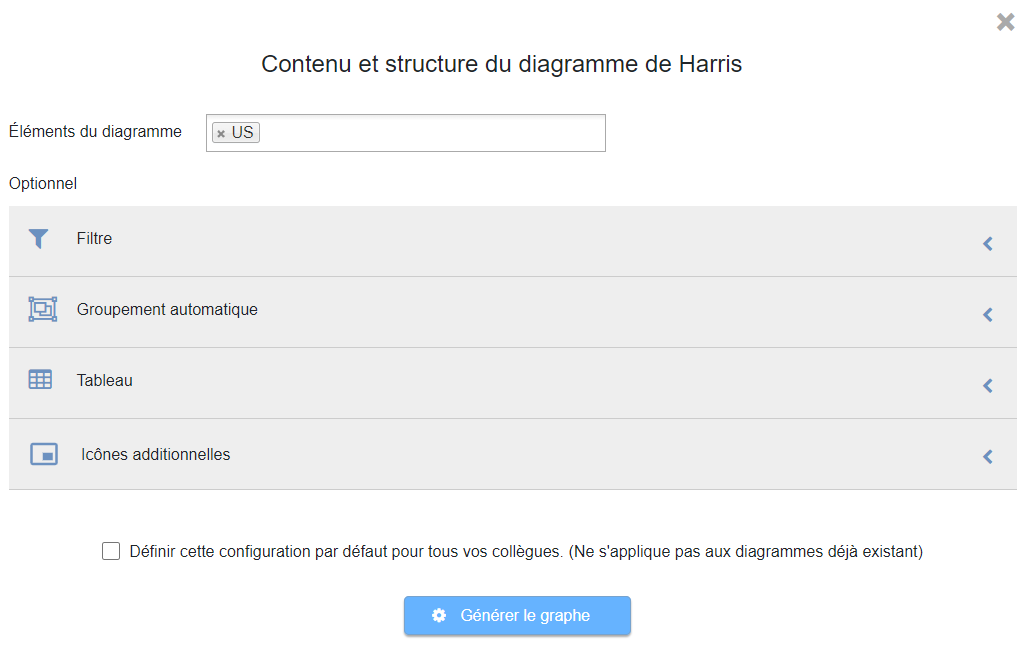
This refers to the main element on which the Harris matrix is based. In this example, these are stratigraphic units US.
C: Help Menu
The help menu can be accessed via this icon.
D: Undo vs Redo
The previous action is undone or the next action is redone.
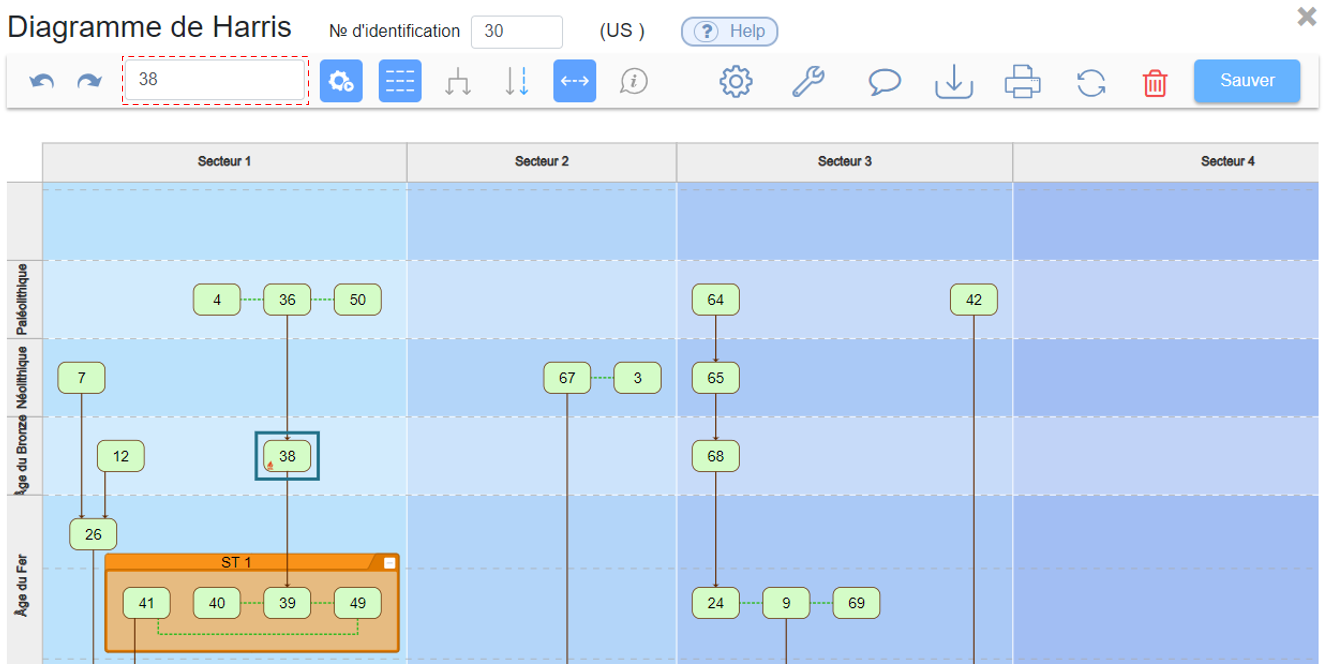
E: Free Text Search
A search can be performed on the numbers or names assigned to the elements of a matrix. In this example, a search is performed on US 38. The result is highlighted using a blue frame.
F: Automatic Placement
The icon  refers to the automatic placement of matrix elements. By default, automatic placement is enabled. This allows the matrix to be modified dynamically and regenerated with automatic placement of the entities it contains.
Automatic placement can be disabled at the end, for example, when the graph is being prepared for publication. Axes or connections can then be manually adjusted.
Special attention should be paid not to disable Automatic Placement before completing the work, as the matrix can no longer be dynamically regenerated. If automatic placement is re-enabled after modifications, manually performed changes will be lost.
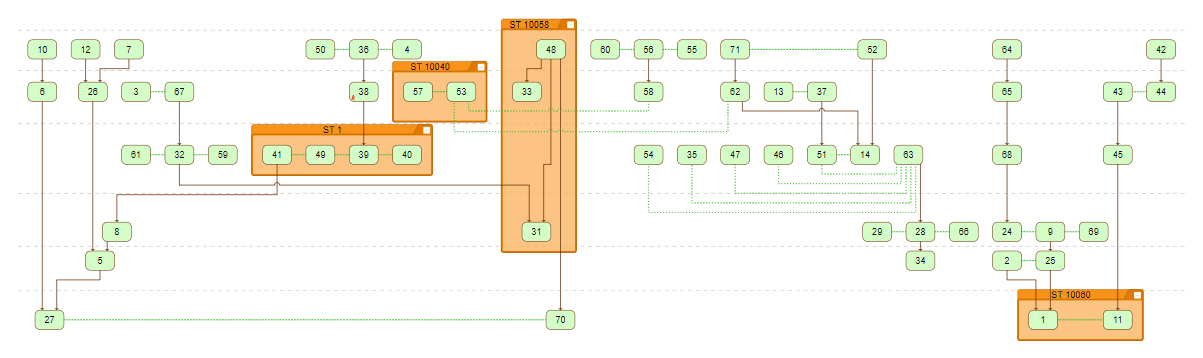
G: Show Level Grid
Levels are automatically created during matrix generation. These levels are generated based on existing stratigraphic relationships and their subsequent grouping.
H: Group vs Ungroup
The axes of automatically generated connections between elements can be modified via the icon 
I: Show vs Hide Redundant Stratigraphic Relations
By default, redundant stratigraphic relations are not drawn to optimize the matrix display. However, they can be viewed using the icon  . Redundant stratigraphic relations appear in blue.
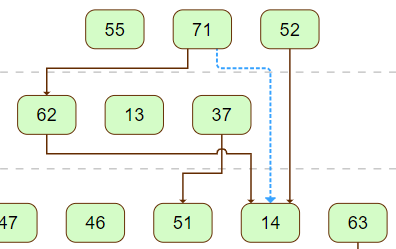
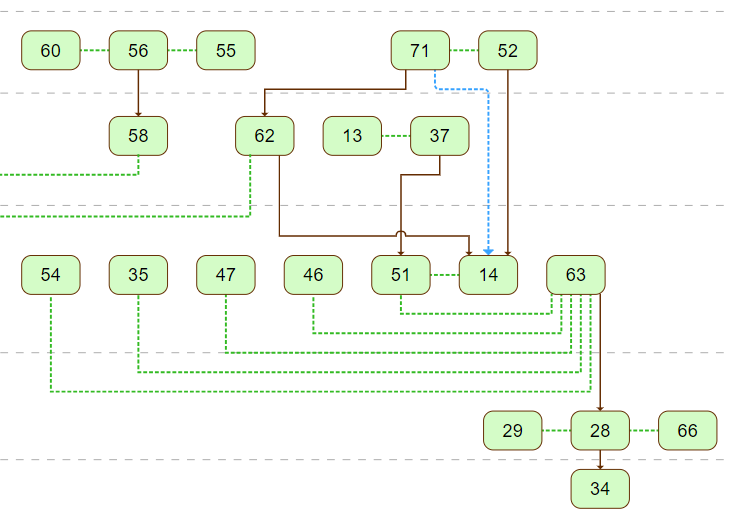
J: Show vs Hide "Contemporary with" Relations
By default, Contemporary with relations are shown in green.
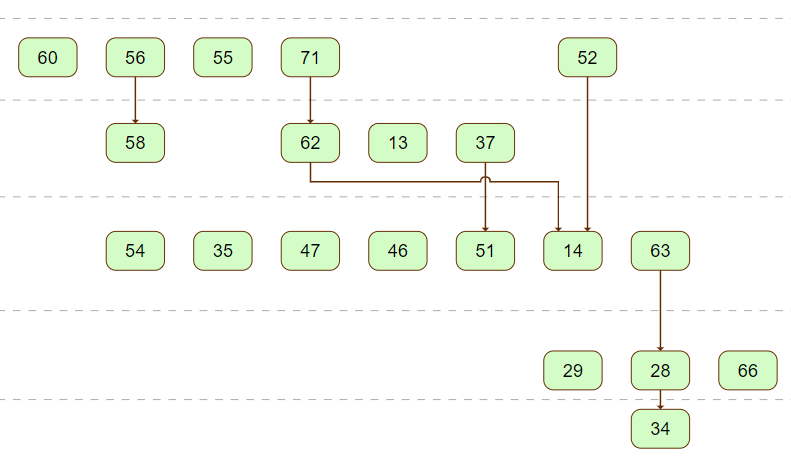
The Contemporary with relations can be hidden by clicking the icon  . Only the horizontal positioning of the elements will then indicate that they are potentially contemporary.
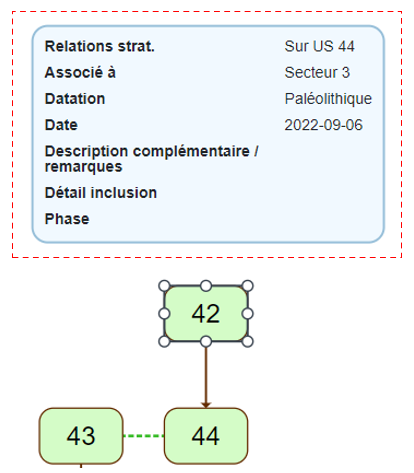
K: Tooltips
When the icon  is activated and the user left-clicks on an element in the matrix, a tooltip appears. The content of this tooltip is fully configurable (see M: Configuration).
When the icon is activated and the user left-clicks on a connection, the stratigraphic relationship between the two elements is displayed.
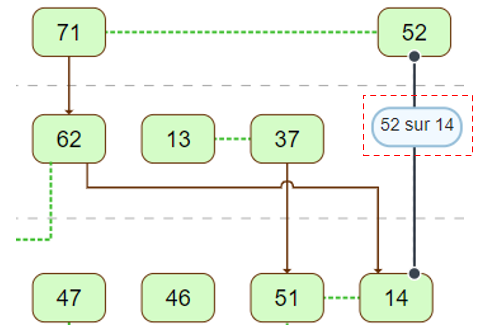
L: Content and Structure of the Matrix
The icon  displays the menu initially shown during the creation of the Harris Matrix. It allows the composition of the matrix to be modified directly from its toolbar after it has been generated.
M: Configuration
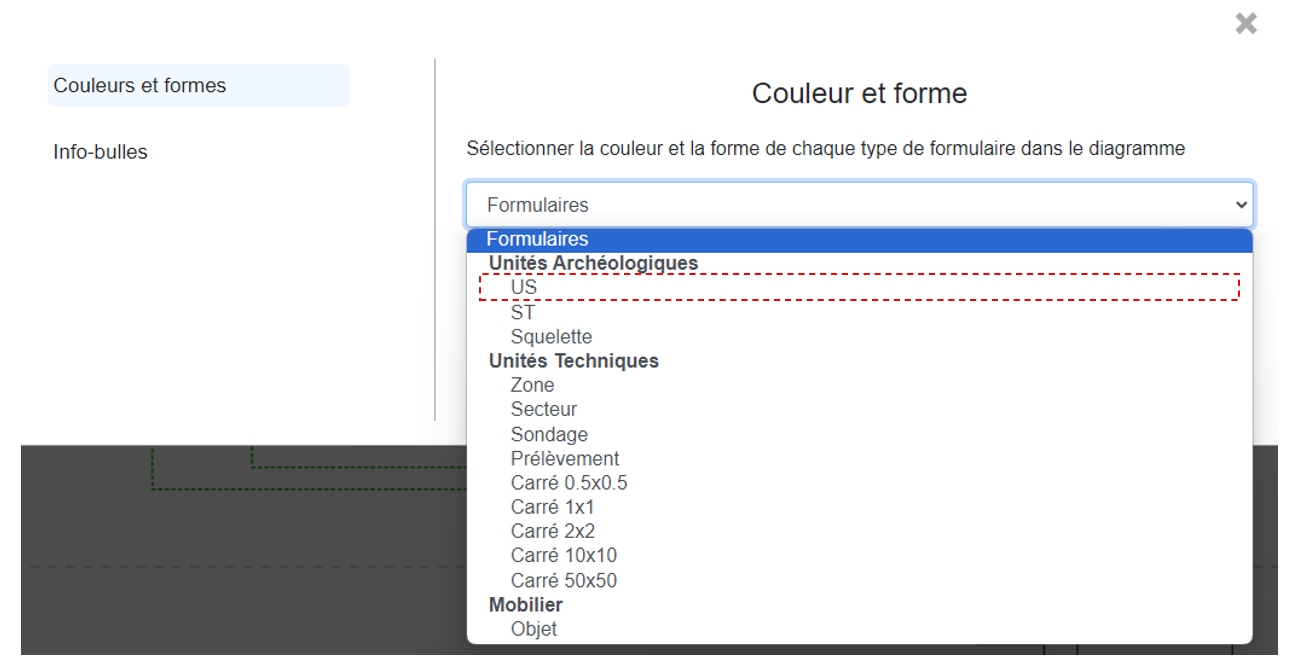
The icon  opens the configuration menu for Colors and Shapes or Tooltips.
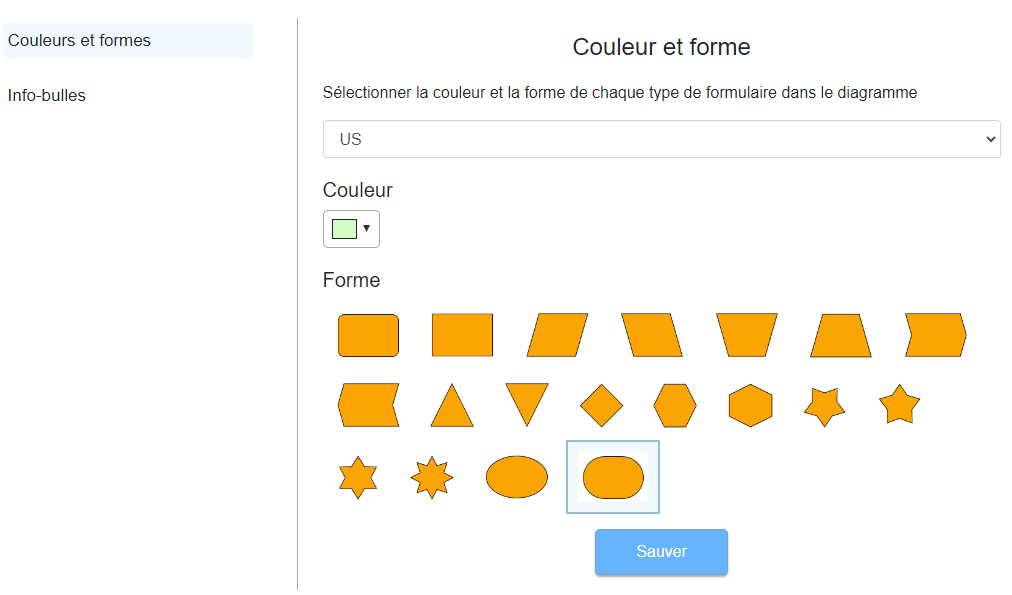
Colors and Shapes
Matrix elements can be styled.
Tooltips
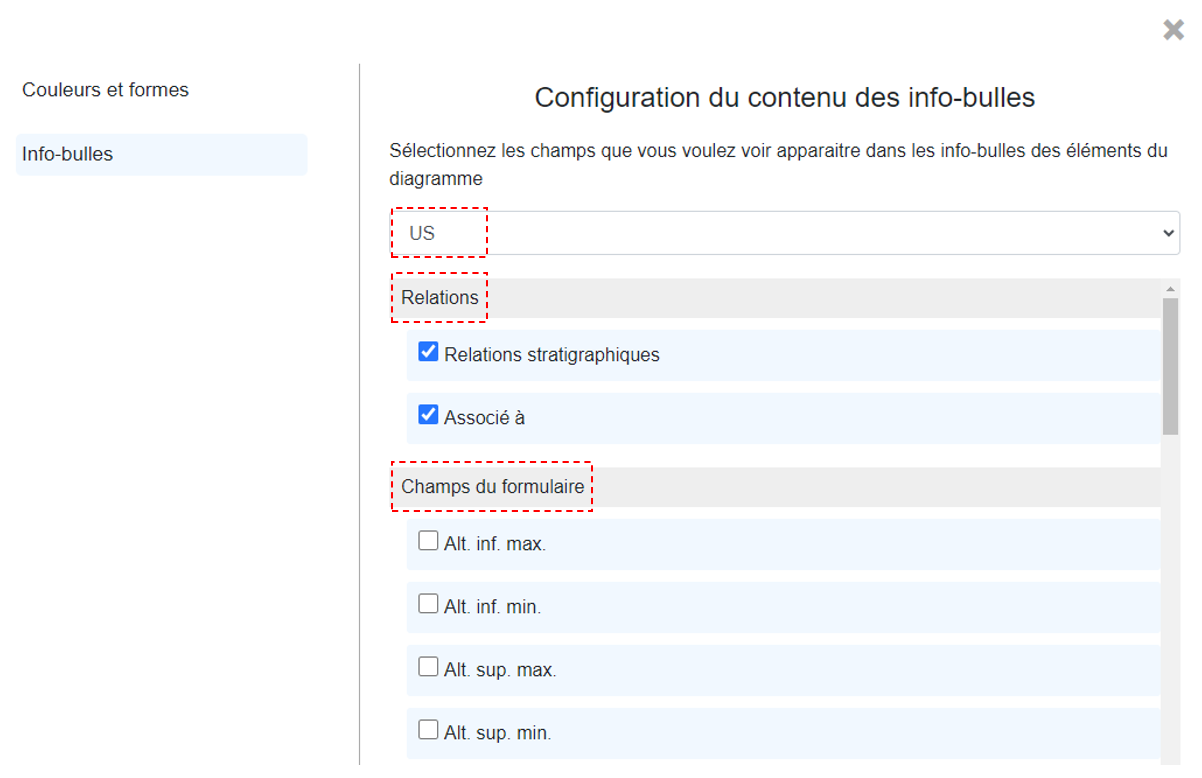
The content of tooltips can be configured. Simply select the relations or fields to be included.