Documentation

The ArcheoBase user guide, step by step, with its videos.

Exporting


Export a table

Tables can be easily configured and exported in Excel format. Typically, users export tables to attach them to a report or to update them from Excel and then re-import them into the program.

The export icon is located at the top of each table. Once clicked, the table is downloaded and appears in the computer’s download folder.


Export an intervention

The configuration menu includes export functions. Click the Export intervention data button to open the following window.

Export data only (Excel file)
  • Forms and the data they contain are downloaded in Excel (xlsx) format.

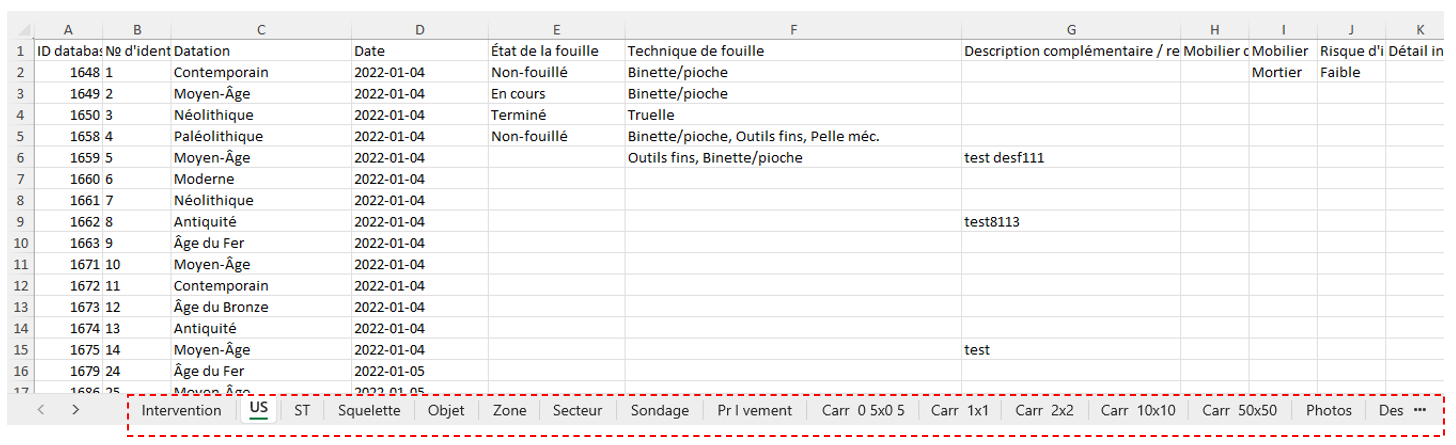
  • Each form type is represented as a tab in the Excel file.
  • Three additional tabs are added to list Associated With relationships, Stratigraphic Relationships and the coordinates of every element of the intervention.
  • The Photos and Drawings tabs include an additional column with a link to the media file that can be downloaded.
Export all: data, images, drawings, and documents
  • In addition to exporting data in an Excel file, photos, drawings, and documents are compressed (zipped).
  • The compression process may take some time.
  • The user receives an email when the zipped folders are ready for download.
  • The download links for the zipped folders are shown in the same location, i.e., in the Backup window.


A more complex process of automatic export to an organization’s servers can be implemented. In such a case, please contact ArcheoBase support (support@archeobase.org).