User and their rights
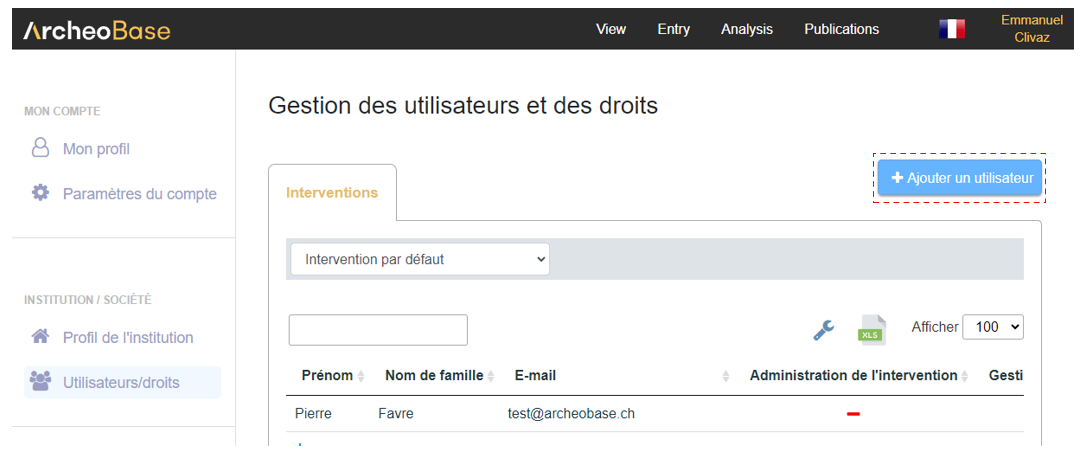
A user can be added by clicking the button. 
The Add a new user page includes several fields:
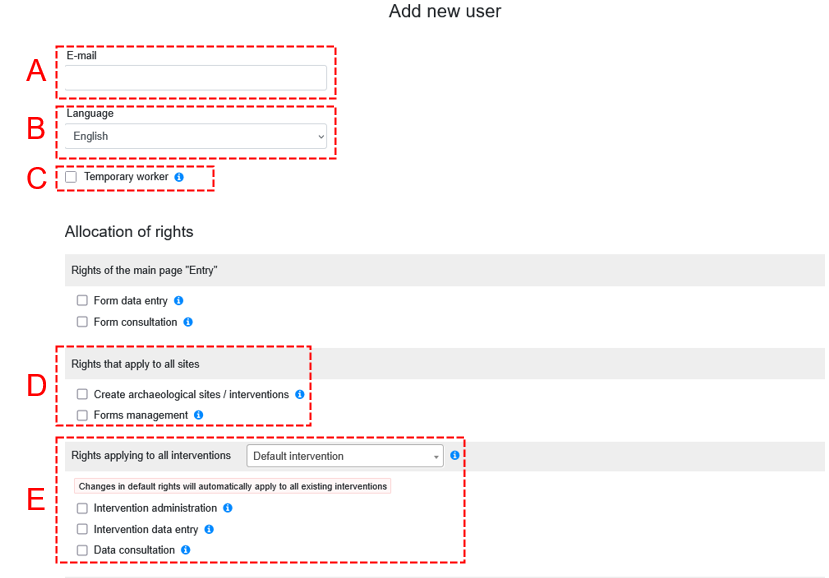
| A: E-mail |
|
| B: Language |
|
| C: Temporary worker |
|
| D: Rights applying to all interventions |
|
| E: Rights per intervention |
|
To delete a user, click on their row in the table to open the User management page. The red Delete button is located at the bottom of the page.
Deleting a user does not remove the data they entered in interventions (forms, photos, drawings, etc.). It simply removes all their rights from all the organization's interventions. Their account is preserved, as they may have rights in other organizations' interventions. The user can be added again later using the same email address.
The deleted user no longer counts toward the organization’s user count. Billing is automatically adjusted based on the account type (fixed vs. temporary).
Subscription management
Fixed staff
Fixed staff of an organization have annual subscriptions active for 12 months from the activation date.
Temporary staff
Daily access provides the flexibility to grant temporary workers access for a few days or months, as needed on a dig site.
The person with the Program administration right registers the person in ArcheoBase and assigns them the Temporary worker status. The cost is automatically calculated based on the number of days the user connects to the application.
A Temporary worker account can be converted to a Fixed staff account at any time to benefit from the more advantageous annual rate.
Creating a new temporary user
- Create a new user.
- Check box C : Temporary worker
- This temporary user can be converted at any time into a subscribed user by unchecking the box.
Principles of a temporary account
- Cost is billed per day of connection.
- Details are on the Prices page under the Prepaid daily access section.
- Calculation is automatically done based on a login during a day by the temporary user.
- A temporary account can be active for up to 6 months during a calendar year (January 1st – December 31st). The limit applies to each year.
- A temporary account can be deleted and reactivated once.
- This allows for two separate periods instead of one.
- To end a temporary period, simply delete the user account.
- If a temporary worker returns periodically within the 6-month period, their account can be kept with reading and writing rights deactivated for confidentiality.
Reconvert a subscribed user to temporary status
- If a user has an annual subscription, it cannot be converted to temporary.
- The checkbox is disabled.
Cancelling a subscription
- To end a subscription, delete the user.
- Since it's an annual commitment, billing will continue until the end of the 12-month period from the activation date, e.g., from 16.04.24 to 15.04.25.
- It’s possible to convert a deleted annual subscription account to a Temporary worker account once it has expired.
If a user resigns from one organization and joins another
- Delete the account in the first organization.
- Billing will continue for the first organization until the annual subscription ends (12 months from activation).
- The administrator of the second organization adds the user.
- If the email is the same, there will be no new billing for the second organization until the annual period from the first organization ends.
- If the email is different, a new annual subscription will begin for the second organization.