Importing an Excel file (xls, xlsx, csv, txt format) is done by matching the column titles of the file with the field names of a form type.
- The file to be imported must contain data for a single form type.
- For example, the file must contain only data related to the form type Structure (ST) or Stratigraphic Unit (SU), etc.
- The form type must have fields that can be matched to the file’s column titles.
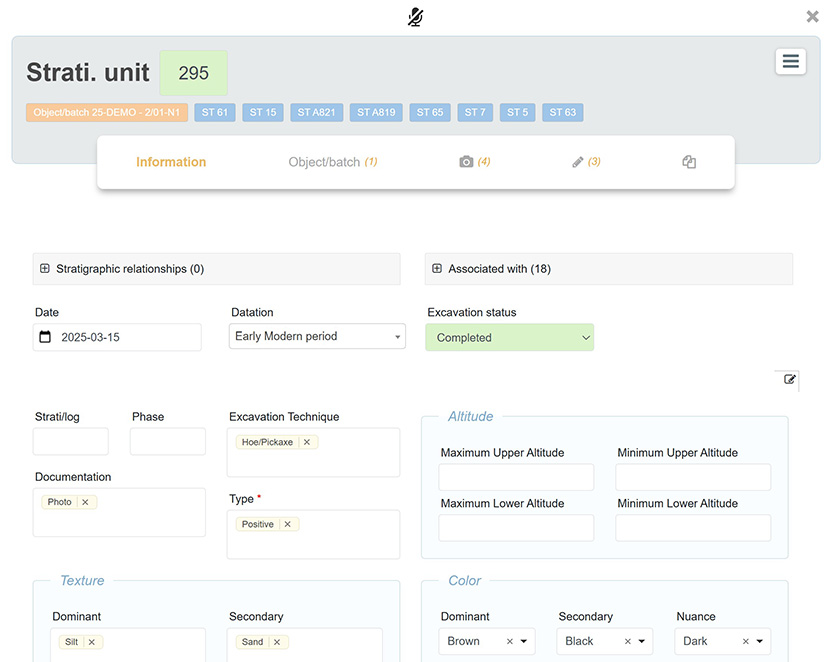
Here is an example of a Stratigraphic unit form:
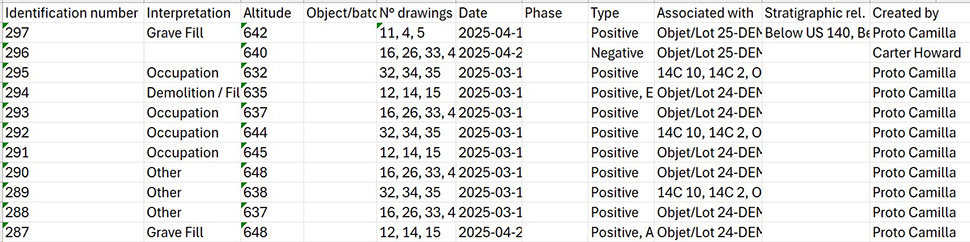
Here is an excerpt from an Excel file to be imported, listing data related to stratigraphic units:
Import
The import process begins by clicking the icon  located above the table of the relevant form type; in this case, the SU table.

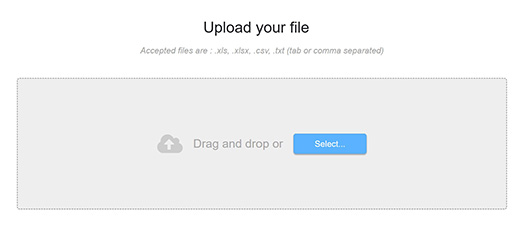
The file can be selected or dropped to upload it.
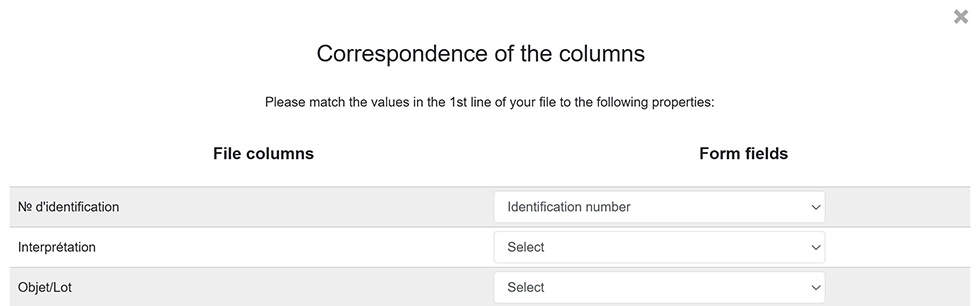
A mapping interface then allows the user to match each column header from the file with the corresponding field in ArcheoBase. The mapping table simplifies this process, as column titles do not have to exactly match the field names.
After mapping the columns to fields, the import can be started by clicking Test Import and then Import. If the forms already exist in ArcheoBase, the relevant fields will be updated with the new data.
Some field types require specific configurations during import. These include Dropdown menus, Associated With fields, and Stratigraphic Relationships.
A dropdown menu has predefined values fixed within the form. Therefore, each distinct value from the import file must be matched with the predefined values of the target field.
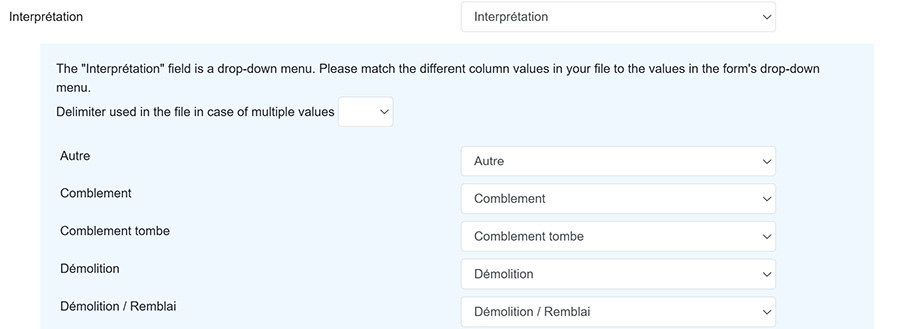
For example, the Stratigraphic unit form type contains a dropdown field named Interpretation. The image below shows how the import module identifies the Interpretation field as a dropdown and allows the user to match each unique value from the file to one of the predefined values in the form.
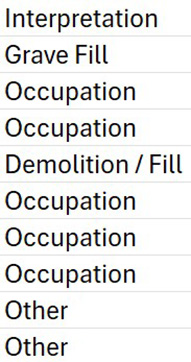
- The left column lists the unique values found in the import file.
- The right column lists the available options in the Interpretation dropdown.
If a column contains cells with multiple values (e.g. Demolition, Fill), a value delimiter (e.g. “,”) must be specified.

If the column contains values not present in the dropdown options, two solutions are possible:
- Add the missing value to the dropdown menu by editing its content (values available); see form configuration.for more details.
- Allow all users to input new values not listed in the dropdown. To do this, configure the dropdown to accept new entries. Then, the matching interface will show a new value: No match, import the value from the file.
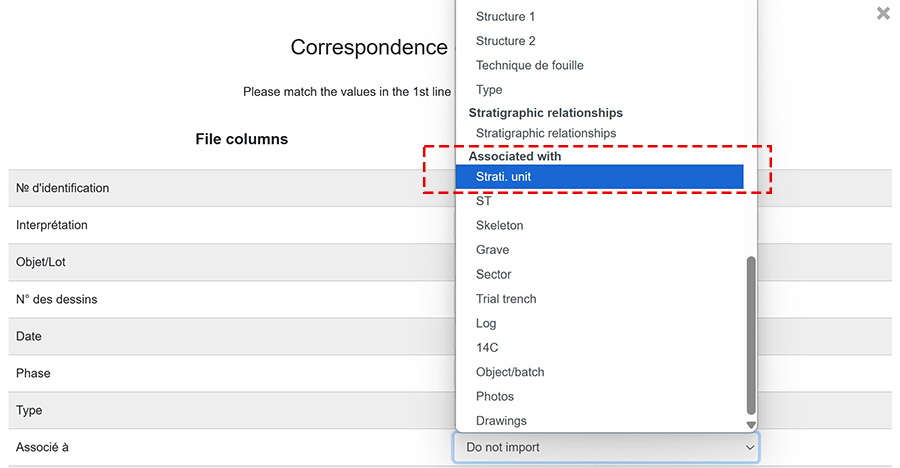
A form type may have many associations (e.g. with Stratigraphic unit (SU), structure (ST) forms, etc.). The import file must contain a separate column for each association type, such as Associated with SU, Associated with ST, etc. These columns can then be mapped individually.
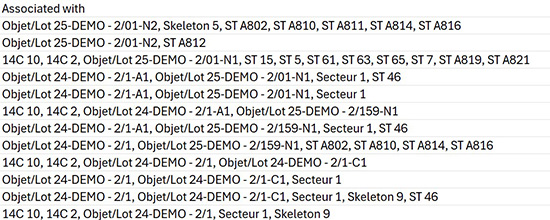
In the example below, the import file contains the following column:
The import module lets you choose the form type to which the values belong. Here, the column must be linked to the Stratigraphic unit type, as the values are identification numbers for stratigraphic units.
It is also possible to associate one element with several others of the same type by entering multiple values in a single cell.

In the above example, SU 12 is associated with SU 26, SU 42, and SU 128. Since the column contains multiple values, a delimiter (e.g. “,”) must be specified.

Stratigraphic relationships can only be imported between elements of the same form type. For example, a file containing Stratigraphic unit records can only create stratigraphic links to other Stratigraphic unit records.
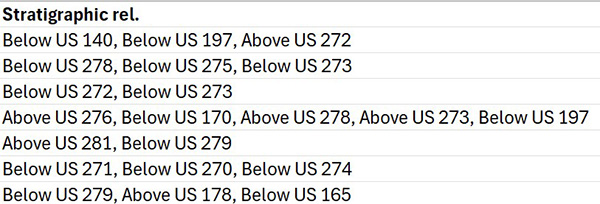
The file includes the following values for stratigraphic relationships:
Once the delimiter is set and mappings are confirmed, the import tool will display the following result:
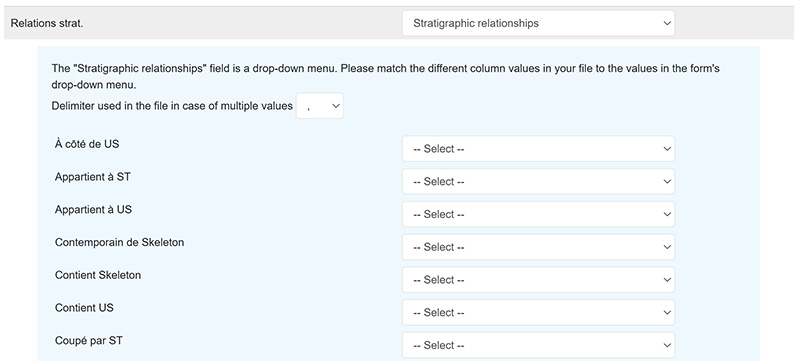
The corresponding Stratigraphic unit numbers will be extracted automatically by the import tool.