Introduction
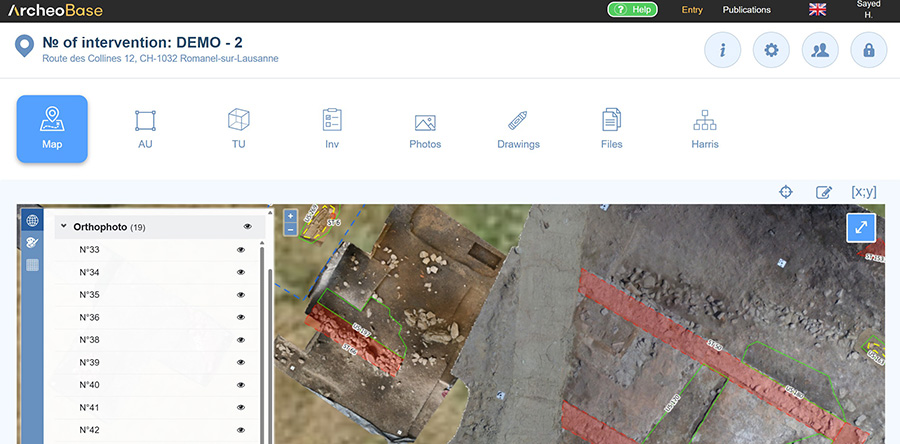
Orthophotos can be easily imported and displayed on the map:
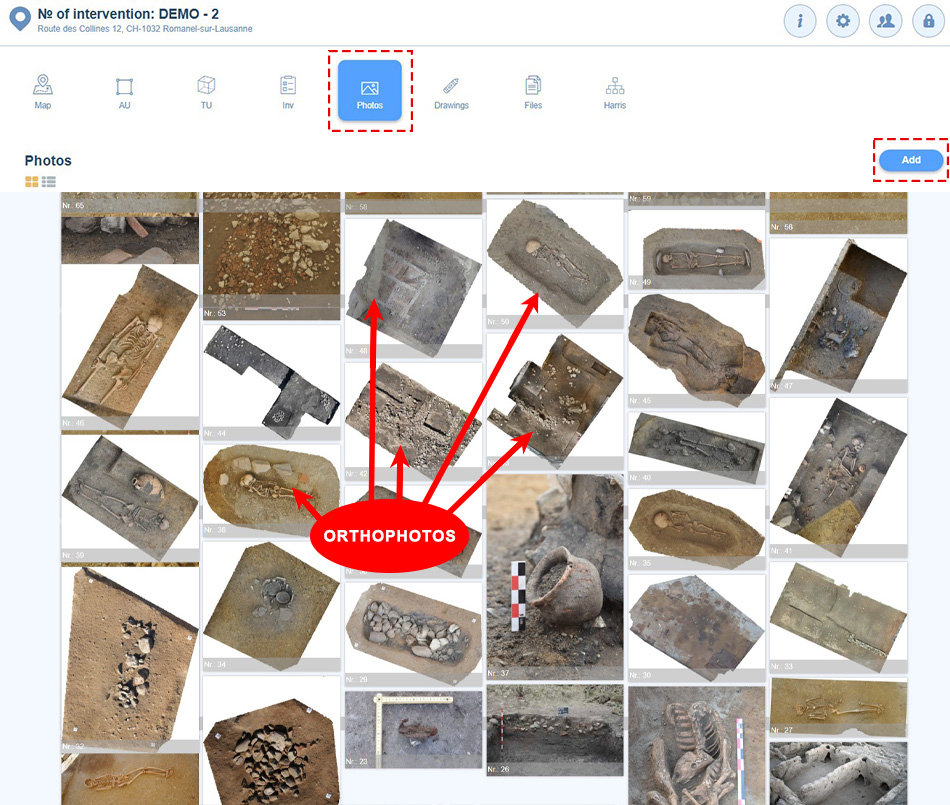
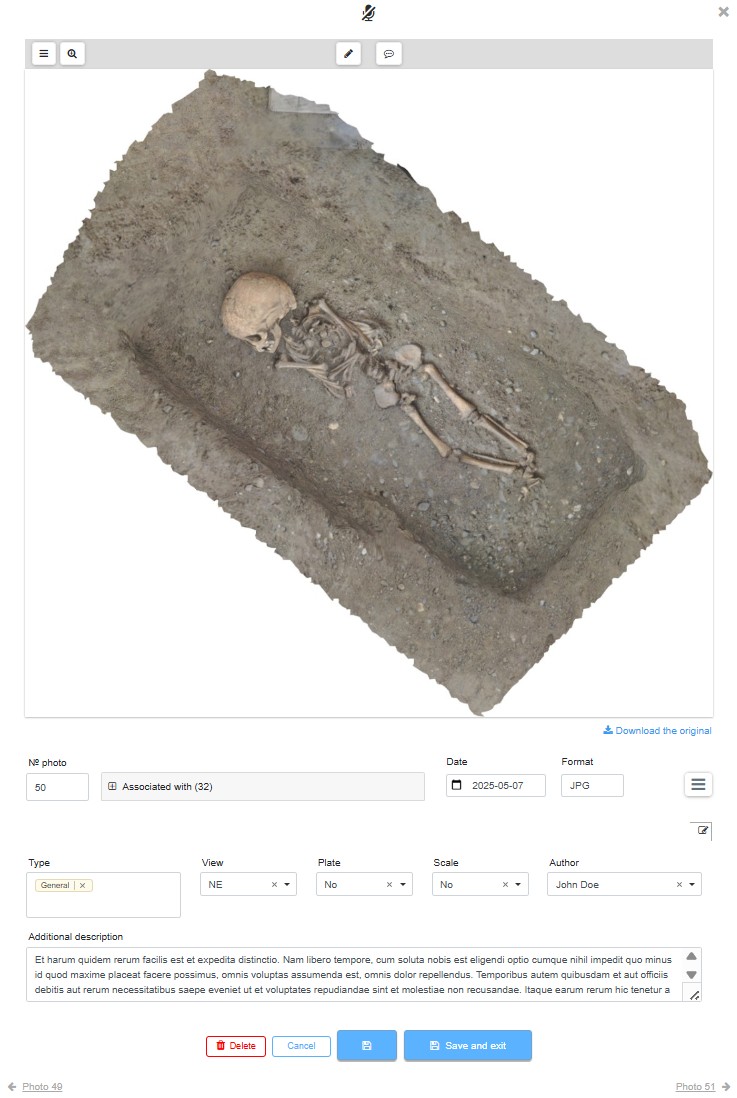
After import, orthophotos are displayed in the Photos gallery:
Import Process
Start the Import
Importing orthophotos is similar to importing a regular photo. The upload process can be started from the main menu tab by clicking the Add button.
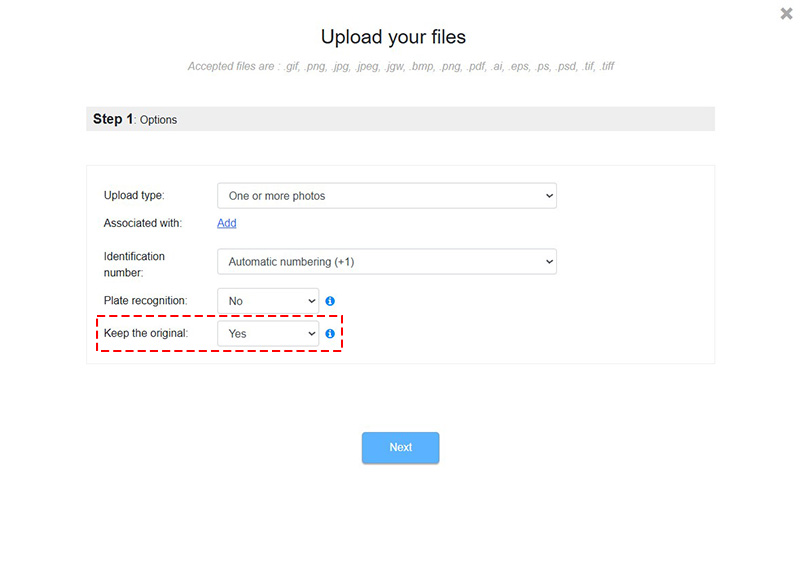
The upload process allows certain settings, such as Keep original, to be configured.
- The original photo can be preserved in case the user wants to access and download the orthophoto in its original quality from ArcheoBase.
- The import process can also be done without keeping the original if the user wants to reduce server storage costs. In that case, only the optimized photo after Tiling will be stored and available for download.
Define the Format
Accepted formats are .tif or .jpg files accompanied by their .jgw georeferencing files.
-
- Both files, one in .jpg format and the other in .jgw, must be uploaded together in the upload window.
- Both files must have the same name, only the extension differs (example: photo1.jpg and photo1.jgw).
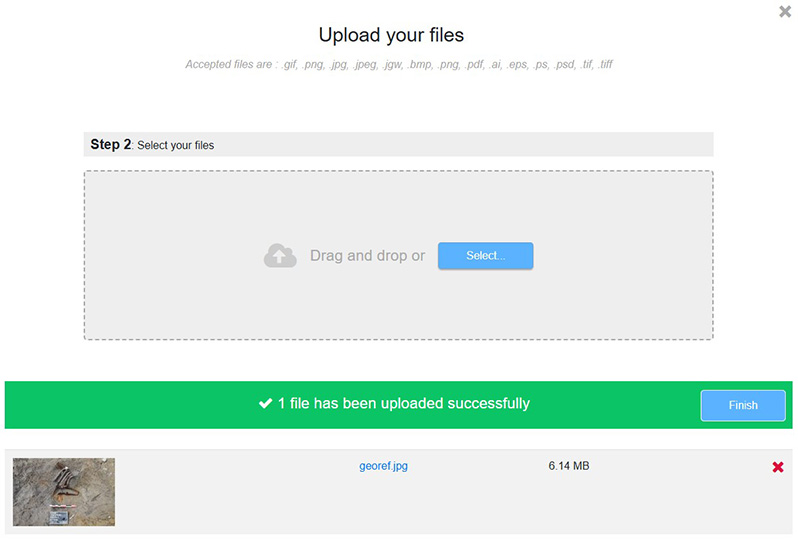
Click Finish to start the tiling process.
Wait for the Tiling Process
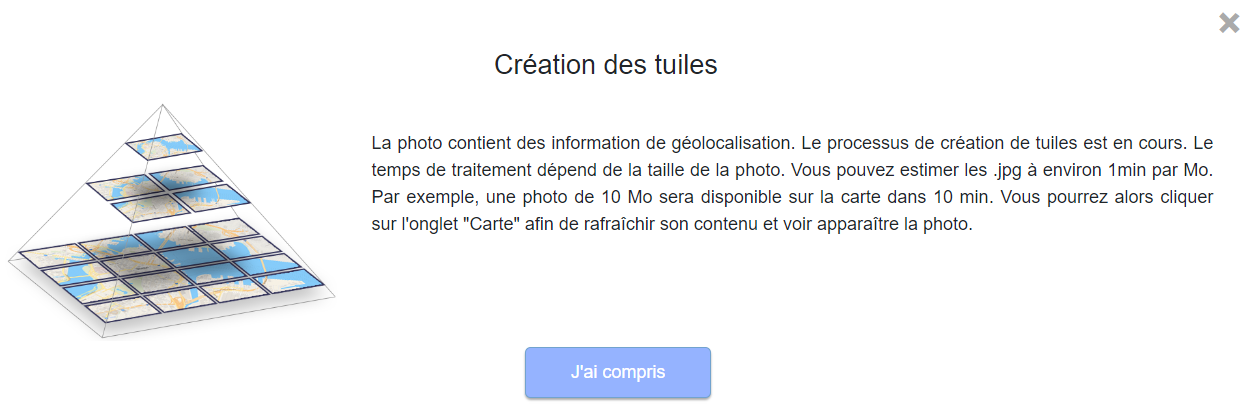
To ensure smooth viewing and high image quality when viewing orthophotos in the field, a tiling process is performed. This calculation and image processing task takes time on the ArcheoBase servers. You can continue working with ArcheoBase while the tiling runs in the background. During this process, the following information window appears:
Finalizing the Tiling Process
Once the tiling is complete, click on the Map tab in the main menu bar to refresh the content and make the orthophoto appear.
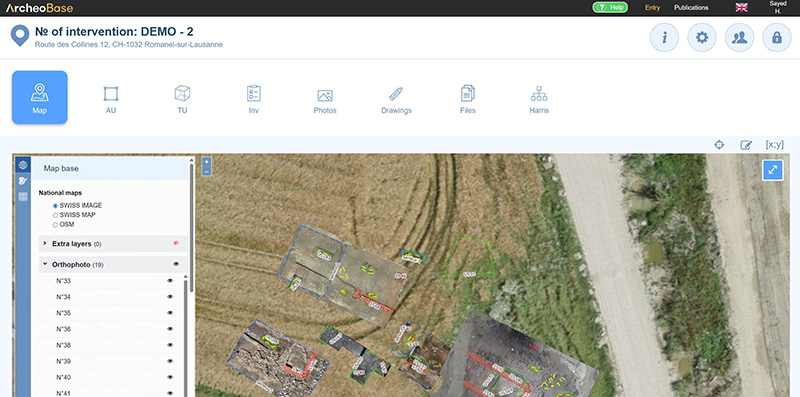
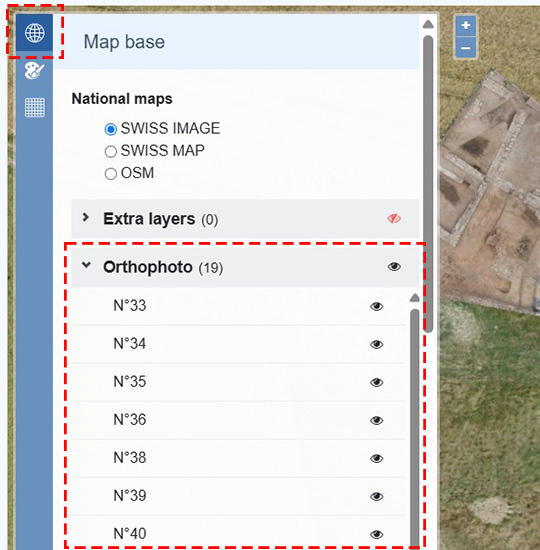
Orthophotos are visible on the map and accessible via the menu icon  on the left side of the map.
Adding an Orthophoto to a Form
Like any photo, each orthophoto is automatically attached to a photo form after upload.
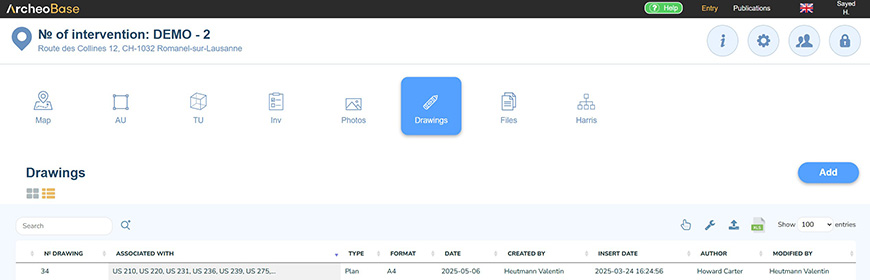
If the orthophotos are included in drawings, such as stratigraphic section orthophotos, they can be imported the same way, but using the Drawings tab from the main menu bar and clicking Add.