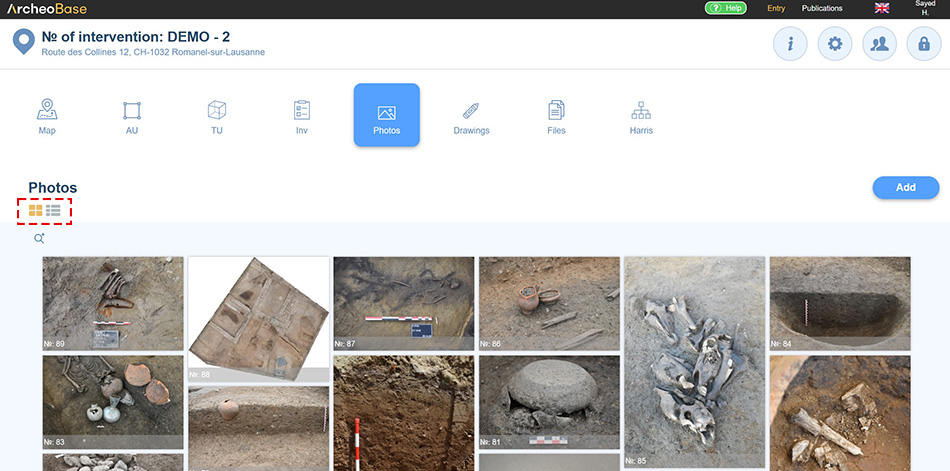
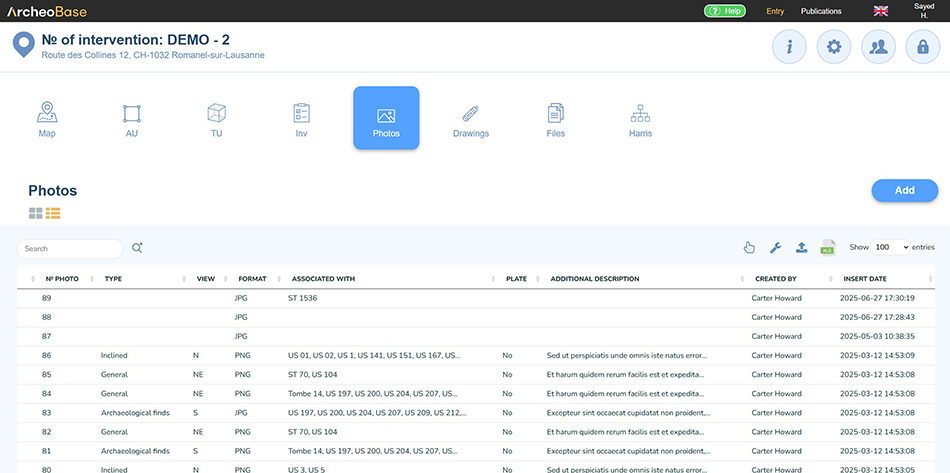
All photos from an intervention can be viewed under the Photos tab in the main menu bar. The icons  facilitate viewing photos as a gallery or table.
A new photo form can be created using the Add button.
Additionally, each type of form also has a tab offering an overview of the photos associated with the current form.
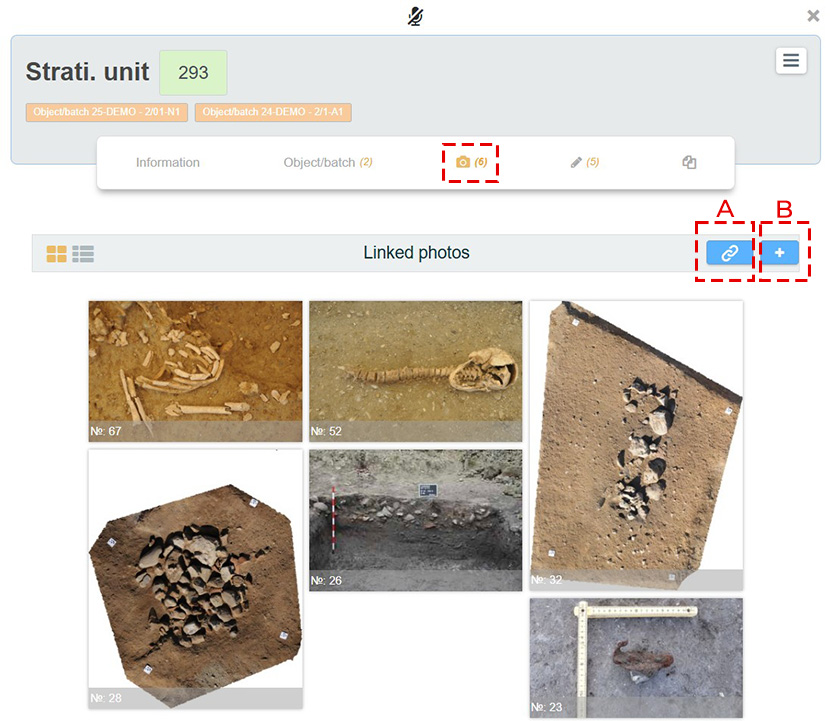
A: Add an existing photo to the form
The button  associates an existing photo within the program with the current form. The user can choose one of the existing photos (already listed under the Photo tab in the main menu) to associate with the form.
B: Add a photo
A new Photo form can be directly created from the form it will be associated with using the icon  .
By default, each photo uploaded or created within ArcheoBase has its own form. This allows them to be displayed as a table and benefit from functionalities related to Dynamic Forms.
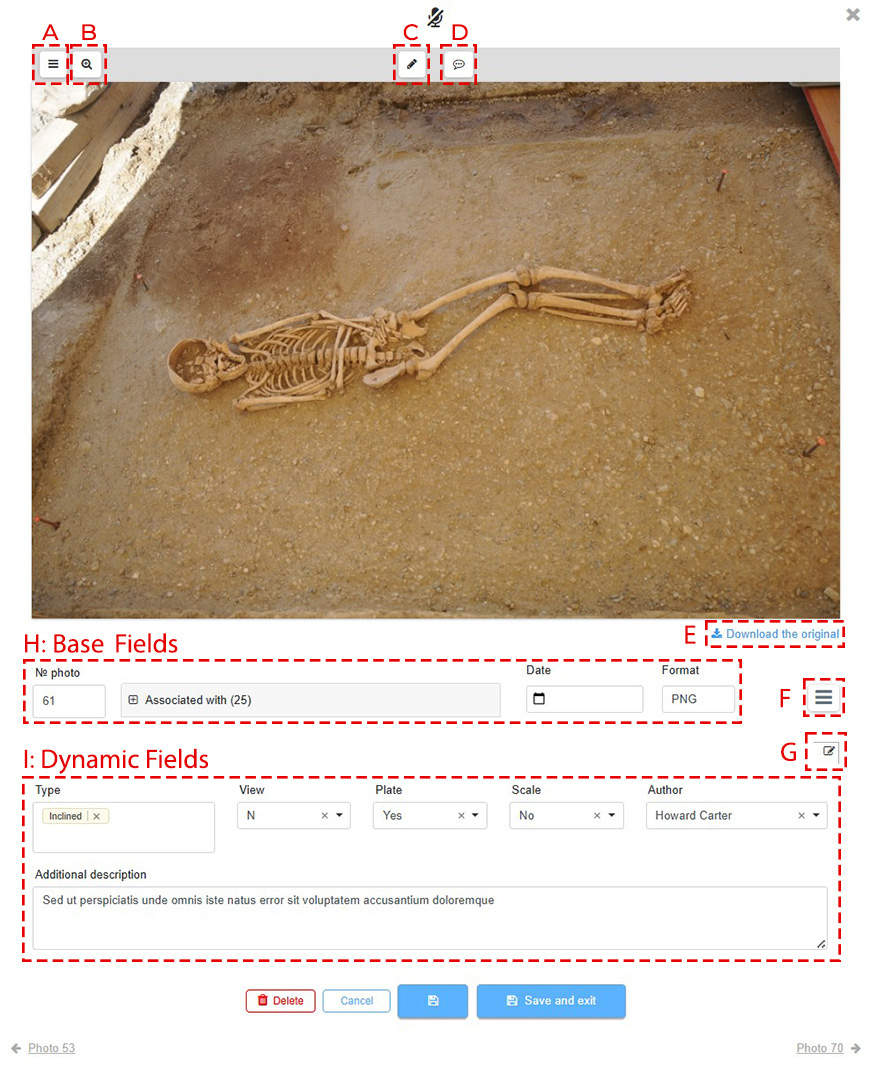
A: Layers
The Layers tab allows you to show or hide layers on a photo. You can activate all layers simultaneously or hide some of them. More details on the functions of layers can be found on the Comment and draw on a photo page.
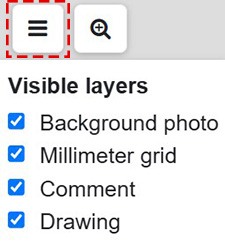
B: Zoom
The zoom icon  allows the user to zoom in or out on a photo in a form.
C: Draw on a photo
The icon  opens the drawing window. The procedure is described in more detail on the page Comment and Draw on a Photo.
D: Annotations
The icon  allows the user to select specific points on a photo and add a comment. The process is described in the section Comment and draw on a photo.
E: Download the original
The photo displayed in the interface is a lighter copy of the original to allow smooth usage in the program. The Download original link allows you to get the photo in the quality it was uploaded in. The original photo is available only if the option Keep original was selected during the photo upload.
F: Dropdown menu
The dropdown menu  displays several options:
 |
A popup appears and displays the geographic coordinates related to the photo. |
 |
Facilitates the replication of data in fields by copying them from the previous form to the current one. |
 |
Replicates Associated with relationships from an existing form to the current form. |
G: Edit dynamic fields
The icon  indicates that the fields below are Dynamic Fields. They are fully configurable by the user if they have the Form Management right.
H: Base fields
The Base fields of the photo form are:

The Photo No. is incremented automatically.
- It can be modified manually if needed.
- It can also follow a more specific format if necessary. Contact the support team in such a case.
The dropdown menu Associated with lists the existing associations.
The Base fields of a photo form cannot be modified by the user.
I: Dynamic fields
The Dynamic Fields represent the majority of the information in a form. As indicated above, the icon allows them to be edited if the user has the Form Management right.