Tables allow users to configure column display according to their preferences. The icon  located at the top of the table opens the column configuration window.

The upper part of the page Table Column Configuration displays a dropdown menu along with two boxes containing column titles.
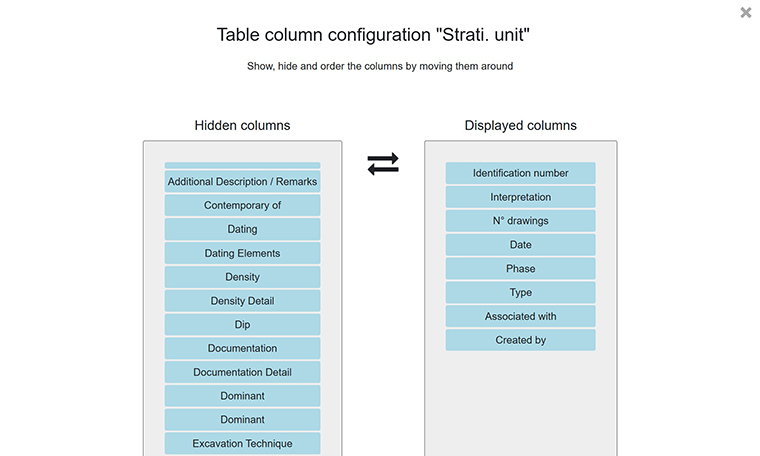
- The items in the Hidden Columns box can simply be dragged into the Displayed Columns box to make them visible in the table. Conversely, items from the Visible Columns box can be dragged into Hidden Columns to remove them from the table.
- The dropdown menu titled Template(s) available allows the user to quickly select a previously saved column selection template. This feature can be used, for example, to switch from a column setup used during the excavation phase to one used during post-excavation. Another useful example would be setting up a column model for exporting data to be included in specific types of reports.
The lower part of the page contains checkboxes and a summary of the selection:
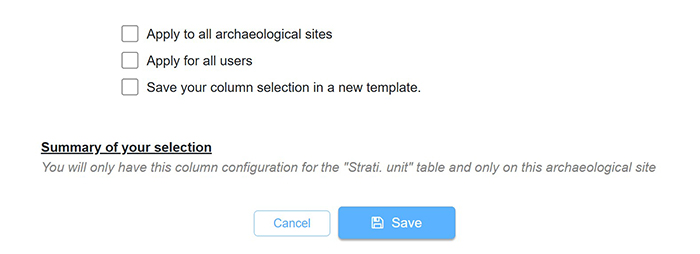
- Apply to all interventions means that the selection will be applied to all of the user’s interventions.
- Apply for all users means that the column selection can be applied to all users within an organization.
- Save your column selection in a new template allows the user to save the model so it can appear in the dropdown menu at the top of the page. As indicated, after checking this box, the user can define the model’s visibility. The model can be made available in the dropdown menus of all users in an organization or kept only in the user’s private dropdown list.