Creating a new form type requires the Form-Management Rights.
The menu Configuration  / Forms Configuration, lists a library of Base Forms and Complementary Forms used by the organization.
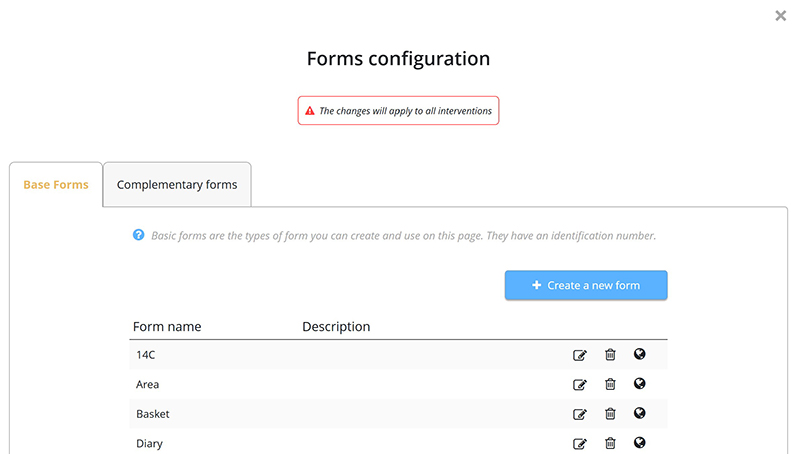
The Create a form button opens the window for creating a new form type. After the general fields Form Name and Description, four groups of fields follow: Base Fields, “Associated with” Shortcuts, Property visible next to the identification number and Dynamic Fields.
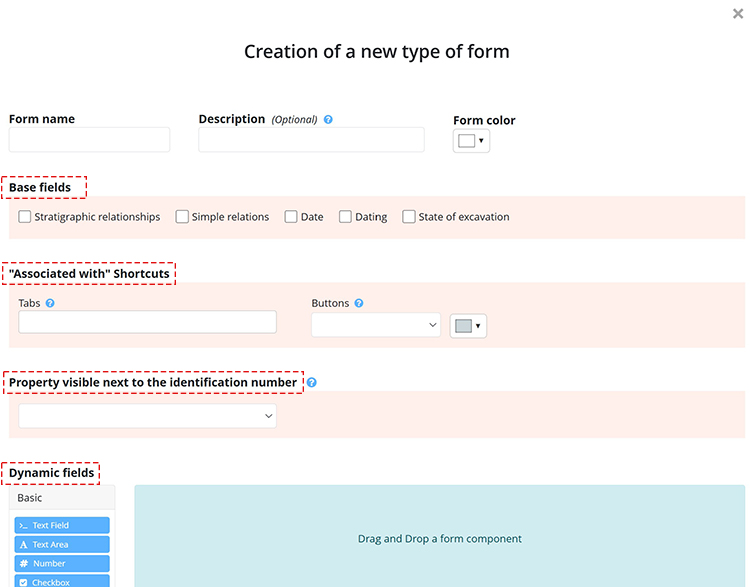
Base fields are commonly used across all form types. A user with the Form-Management Rights can define the minimal required fields to be included in a new form type. These optional base fields are: Stratigraphic Relationships, Associated with, Date, Dating, and Excavation status.
The base field Excavation status is a visual indicator of a form's progress. It allows the application of a color code, facilitating an overview of all forms within a table. The color code is applied within the form by the user, who selects the appropriate value from the Excavation status dropdown menu.
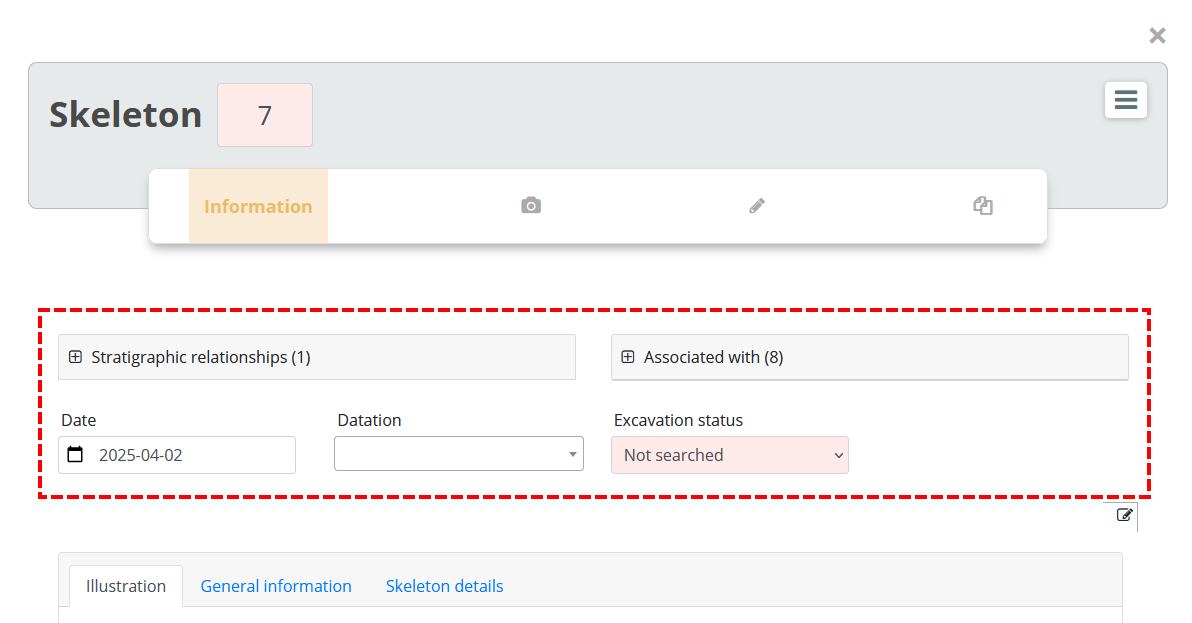
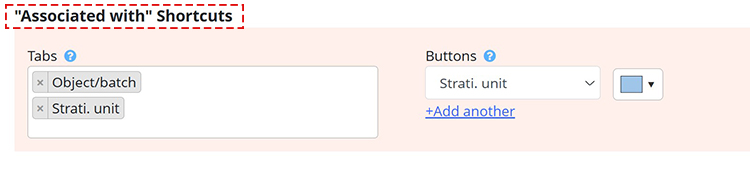
The "Associated with" shortcuts field lets the user choose how to display links in a form.
- The Tabs field adds tabs to the form’s menu bar. All associated elements of a specific type can be viewed in a table.
- The Buttons field displays and provides quick access to individual associated forms, which appear as buttons in the upper section of the form.
The page Viewing Links provides practical examples.
Property visible next to the identification number
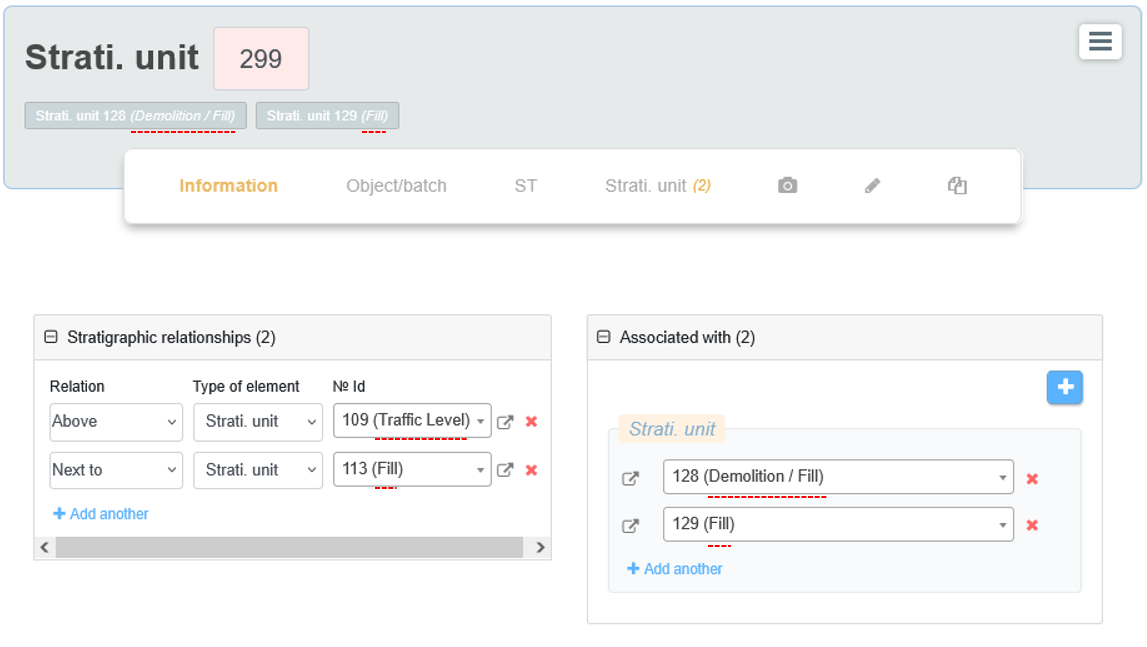
This drop-down menu lets you display a property of the form next to its identification number. The properties offered by the drop-down menu correspond to those contained in the form’s dynamic fields. In the following example, the Interpretation property of a SU form was chosen to be displayed next to the identification number. This makes it easier to identify SUs during data entry and when reading forms.

Dynamic fields
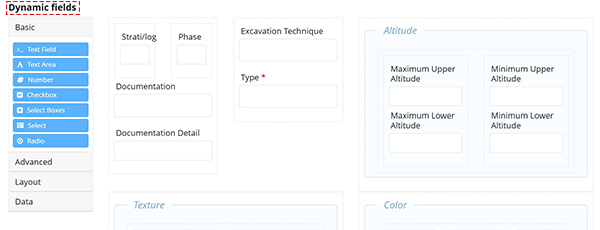
A Dynamic Fields is a customizable section of a form which can be freely designed by the user to meet their specific needs. The Dynamic Fields section includes a selection of components on the left, which can be integrated into the form. Simply drag them into the blue frame on the right side of the window. The page Component Types outlines the range of available possibilities at this level.